Approval groups
This page is for Owner, Admin, and Member admin managing approval groups in Actagate. Create groups and assign the people who handle approvals or receive runbook tasks after approval.
Create a group
Section titled “Create a group”Creating groups, changing members, and deleting groups requires members.manage. Owner, Admin, and Member admin can perform these actions.
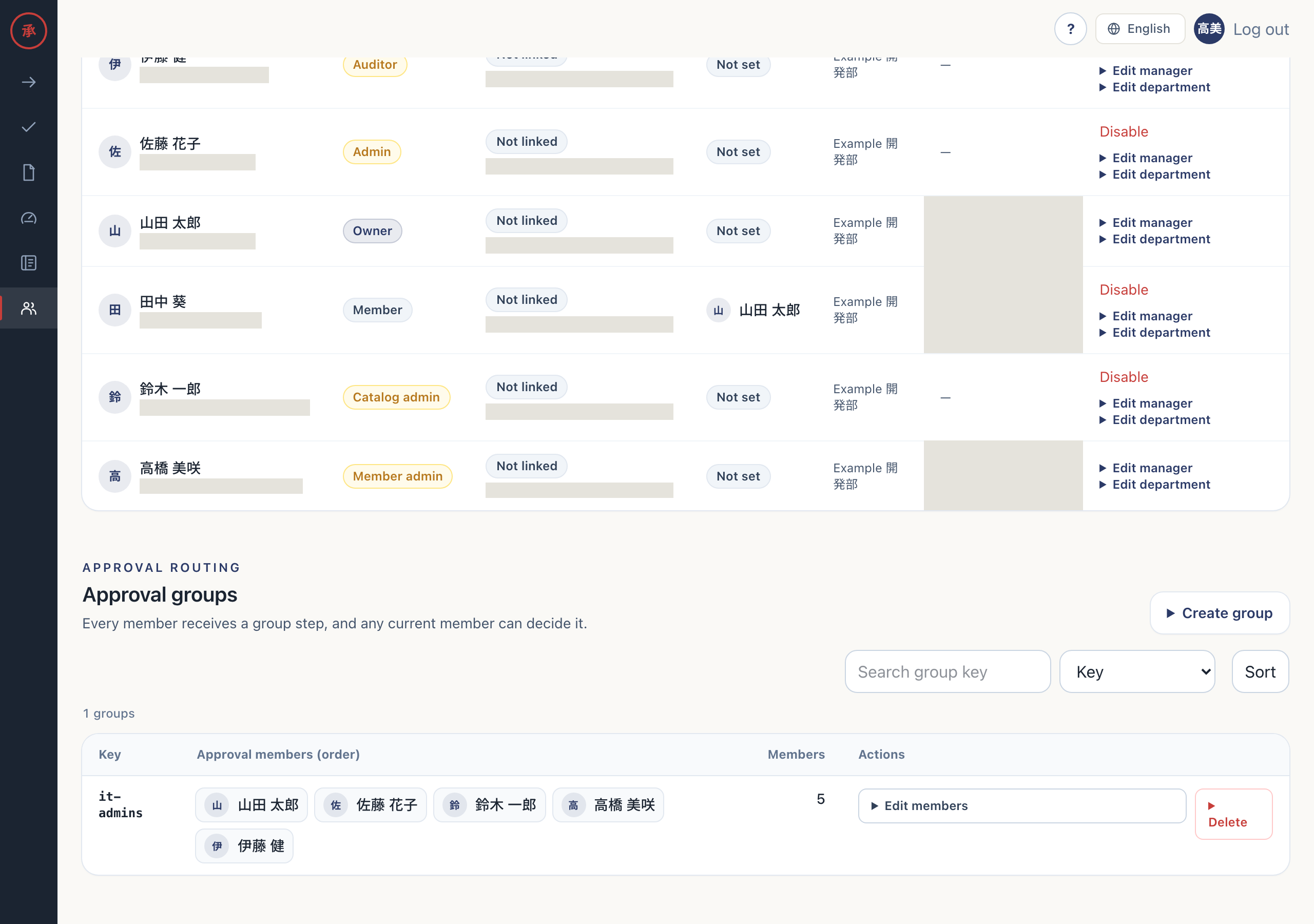
- Open “Create group” under “Approval groups” on “Members” (
/ws/members). The creation form appears. - Enter the group key in “Key”. Choose a person in “Member to add” and select “Add”. The person appears in the member list to be saved.
- Select “Create”. The screen displays “Approval group created.” The group is registered.
Keys must be 1 to 64 characters long, using lowercase letters, digits, and hyphens. The first character must be a lowercase letter or digit. Keys must be unique within the organization. A duplicate is rejected with “An approval group with this key already exists.” Invalid input is rejected with “The approval group could not be changed. Check the input.”
A group can have up to 200 members, all active members of the same organization. You can create a group with zero members, but approval routes require active members.
Save the member list together
Section titled “Save the member list together”- Open “Edit members” for the group. The current member list appears.
- Choose a person in “Member to add” and select “Add”, or select “Remove” for a person to exclude. The list to be saved changes.
- Select “Save”. The screen displays “Approval group members updated.” The entire list is saved.
Adding and removing people edits the list; it does not save each change separately. As the screen states, “Member order does not affect approval.”
Editing a Slack-derived group on the Web changes it to a manually managed group. Later Slack synchronization no longer overwrites it.
Separate approval routes from runbook assignments
Section titled “Separate approval routes from runbook assignments”A catalog usergroup step is an approval step. Every member receives it, and any one current member can decide it. Membership is checked at action time, rather than when the request is created, so member changes affect requests already in progress. Delegates cannot act on group steps. See Build the approval route for settings.
A request cannot be created if a group used in an approval step does not exist or has zero active members. Unresolved member IDs left by Slack synchronization also prevent request creation.
manual_group specifies the approval group that receives the runbook task (manual execution) after approval. It is not an approval step. Its default is it-admins, and you set it when editing the catalog. See Define the execution for details.
Create groups for their responsibilities
Section titled “Create groups for their responsibilities”These are examples of groups you might create. db/seed.sql references it-admins and data-owner from catalog items, but does not create approval groups.
| Example key | Example responsibility |
|---|---|
it-admins |
IT approvals and receiving runbook tasks as the default manual_group |
data-owner |
Approving access to data or shared folders |
directors |
Approving requests that require executive decisions |
Requesters cannot approve, reject, or return their own approval step. This applies to direct, group, and delegate paths, with the message “You are not the approver for this step.” Include at least one person other than a likely requester in each group used for an approval step.
Delete a group permanently
Section titled “Delete a group permanently”Deletion is allowed even if a catalog approval route or manual_group uses the group. After deletion, nobody can act on pending approval steps for that group, and new requests cannot be created for catalogs that use it as an approval step.
- Open “Delete” for the group. The field “Enter {key} to confirm” appears, with {key} replaced by the group’s key.
- Enter that key and select “Delete permanently”. If it matches, the screen displays “Approval group deleted.” The group is deleted.
A different key displays “The confirmation key does not match.” The group is not deleted.