Single sign-on basics
This is the starting page for organization owners and admins who want people to sign in to Actagate with the company IdP. Before you create a connection, check the supported providers, how a connection goes live, how accounts are linked and what your operator needs to prepare.
Supported providers
Section titled “Supported providers”You set up SSO under Single sign-on in Settings > Security (/ws/settings/security). Only owners and admins can use it. “Pick a provider to add a connection” lists these 9 providers.
| Provider | Preset ID | Settings form | Guide |
|---|---|---|---|
google |
Its own form. The OAuth client lives in the deployment | ||
| Microsoft | microsoft |
Its own form. The OAuth client lives in the deployment | Microsoft |
| Okta | okta |
OIDC connection | Okta |
| OneLogin | onelogin |
OIDC connection | OneLogin |
| JumpCloud | jumpcloud |
OIDC connection | JumpCloud |
| Ping Identity (PingOne) | ping |
OIDC connection | Ping Identity (PingOne) |
| Auth0 | auth0 |
OIDC connection | Auth0 |
| Generic OIDC | custom |
OIDC connection | Generic OIDC |
| SAML 2.0 | saml |
SAML connection | SAML 2.0 |
The preset ID is recorded in the sign-in audit log as the channel value (sso:<preset ID>). Connect an IdP that is not on the list with Generic OIDC or SAML 2.0. Google and Microsoft appear in the list only when the deployment has an OAuth client for them.
A connection goes from draft to test to active
Section titled “A connection goes from draft to test to active”OIDC and SAML connections become usable in three stages. Google and Microsoft have their own forms: you select “Allow Google sign-in” or “Allow Microsoft sign-in” and save. They have no test stage.
- A new connection is saved as a draft and shows “Draft · Not tested” under “Connections”. It does not appear on the login screen yet
- Press “Test” and sign in to the IdP as yourself. When it passes, the screen shows “Test passed. You can activate the connection.” and the connection is marked “Test passed”
- Press “Activate”. The screen shows “Connection activated. It is now available on the login screen.” and the login screen gets a “Continue with
” button
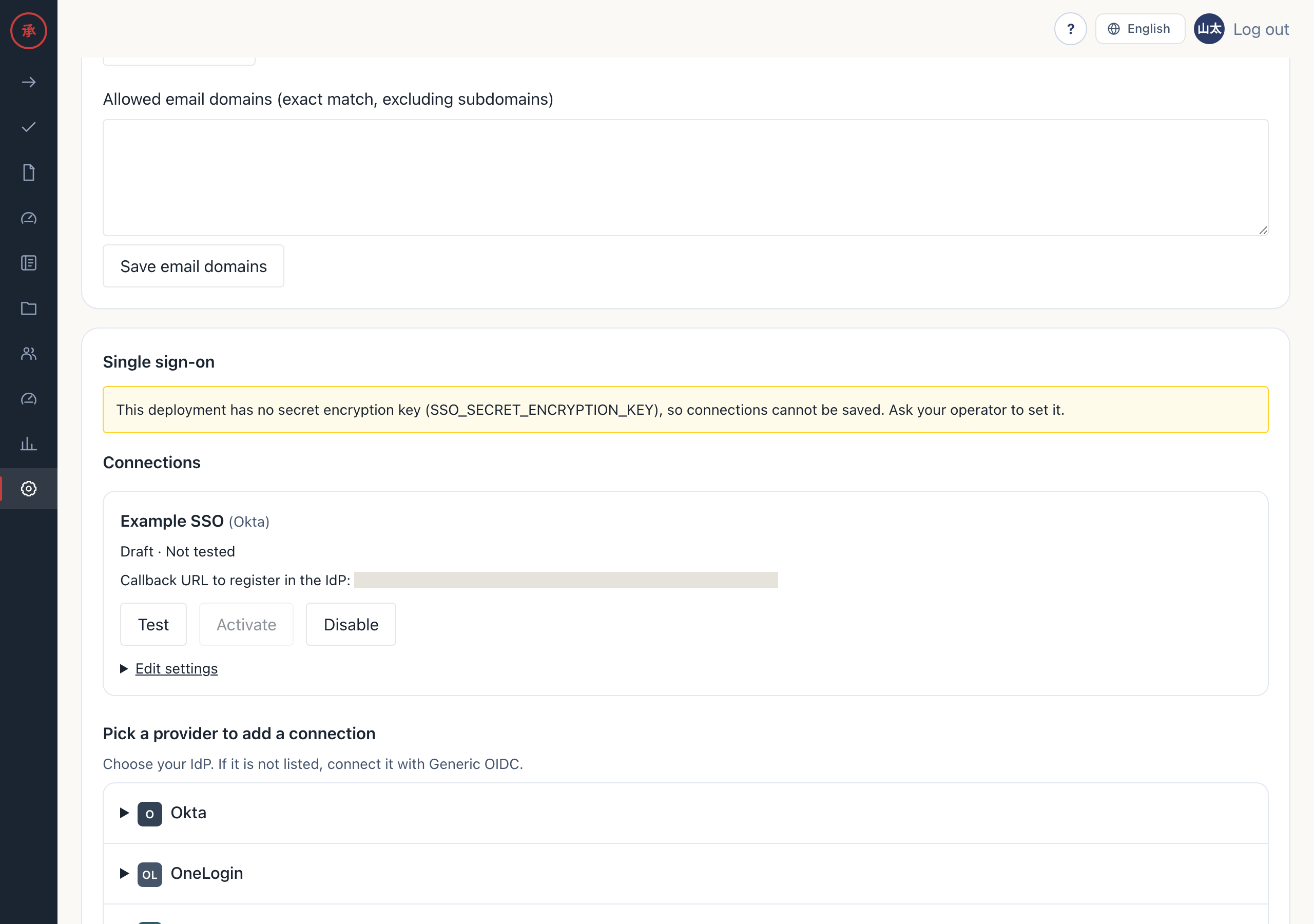
“Activate” works only after a test passes. The test runs in your admin session. It creates no user and links no login method. A test request expires 10 minutes after it starts.
“Disable” removes the button from the login screen. Links between users and the connection stay. If you have not changed the settings, you can activate the connection again without a new test.
Changing settings clears the test
Section titled “Changing settings clears the test”Changing a setting that affects authentication clears the test result. For OIDC these are the Issuer URL, client ID and client secret. For SAML they are the IdP entity ID, the SSO URL, the certificates and whether IdP-initiated login is allowed. The connection then shows “Not tested”.
- An active connection returns to draft and can no longer be used to sign in. Test it again, then activate it
- A disabled connection stays disabled and only loses its test result
- Changing only the display name keeps the test result and the status
- If you change the settings after a test starts, that test is not recorded as passed. The screen shows
test_required - After a user has signed in through the connection, you cannot change the OIDC Issuer URL or the SAML IdP entity ID. To move to another IdP, add a new connection
One person, one account
Section titled “One person, one account”Actagate identifies an IdP user by an ID that does not change within a connection. For OIDC this is the ID token sub, for SAML the NameID, and for Microsoft the pair of tenant ID and object ID.
- Only on the first sign-in, Actagate matches the email address that the IdP marks as verified against the email address of an invited member. The ID is then linked to that member
- From the second sign-in on, the ID identifies the person. If the email address changes in the IdP, the account stays the same
- People who were not invited cannot sign in unless you turn on member creation on first login (JIT)
- Owners and admins cannot be linked on a first sign-in from a signed-out state. They sign in with an existing method and press “Add
” under Settings > Login methods
What to ask your operator
Section titled “What to ask your operator”Before you create a connection, ask the operator who runs Actagate to check these settings.
SSO_SECRET_ENCRYPTION_KEY: the key that encrypts stored OIDC client secrets. The value is 32 random bytes in base64, whichopenssl rand -base64 32creates. Every Web instance gets the same keyWEB_BASE_URL: the public HTTPS origin that users open. The callback URL and the ACS URL you register in the IdP are built from this value- For Google and Microsoft, the OAuth client environment variables listed on their pages
If the key is missing or invalid, the settings screen shows “This deployment has no secret encryption key (SSO_SECRET_ENCRYPTION_KEY), so connections cannot be saved.” OIDC connections cannot be saved and return the reason code encryption_unavailable. After a key change, stored secrets can no longer be decrypted. Enter the client secret of each connection again and test again.
An OIDC IdP must expose discovery, the token endpoint and JWKS over HTTPS on the internet. An IdP that is reachable only from an internal network cannot be connected. There is no setting to allow it.
Settings after activation
Section titled “Settings after activation”Once a connection is active, the same screen offers these settings.
- “Domain verification”: add a domain, publish the displayed TXT record (name
_actagate-challenge.<domain>, valueactagate-domain-verification=<token>) in DNS and press “Verify”. Only one organization can verify a given domain - “Routing domains”: people who enter their email address on the login screen and press “Continue” are sent to that connection’s IdP. Only domains verified by this organization are used
- “Create members on first login (off by default)”: people who were not invited are created as
memberon their first sign-in. This applies only to email addresses in verified domains among the connection’s routing domains - “Require SSO”: blocks sign-in with email links and Slack. You can turn it on only when an active connection exists and you yourself signed in through it. Owners can still sign in with an email link, so they keep a way back in during an IdP outage. Existing sessions stay valid
While SSO is required, you cannot disable the last active connection. Turn off the requirement first.
Related pages
Section titled “Related pages”- When sign-in or a test fails, see SSO troubleshooting