Invite members, set managers and roles
This page is for Owner, Admin, and Member admin managing members in Actagate. Invite people by email and assign managers. Owner and Admin can also change roles.
Invite members by email
Section titled “Invite members by email”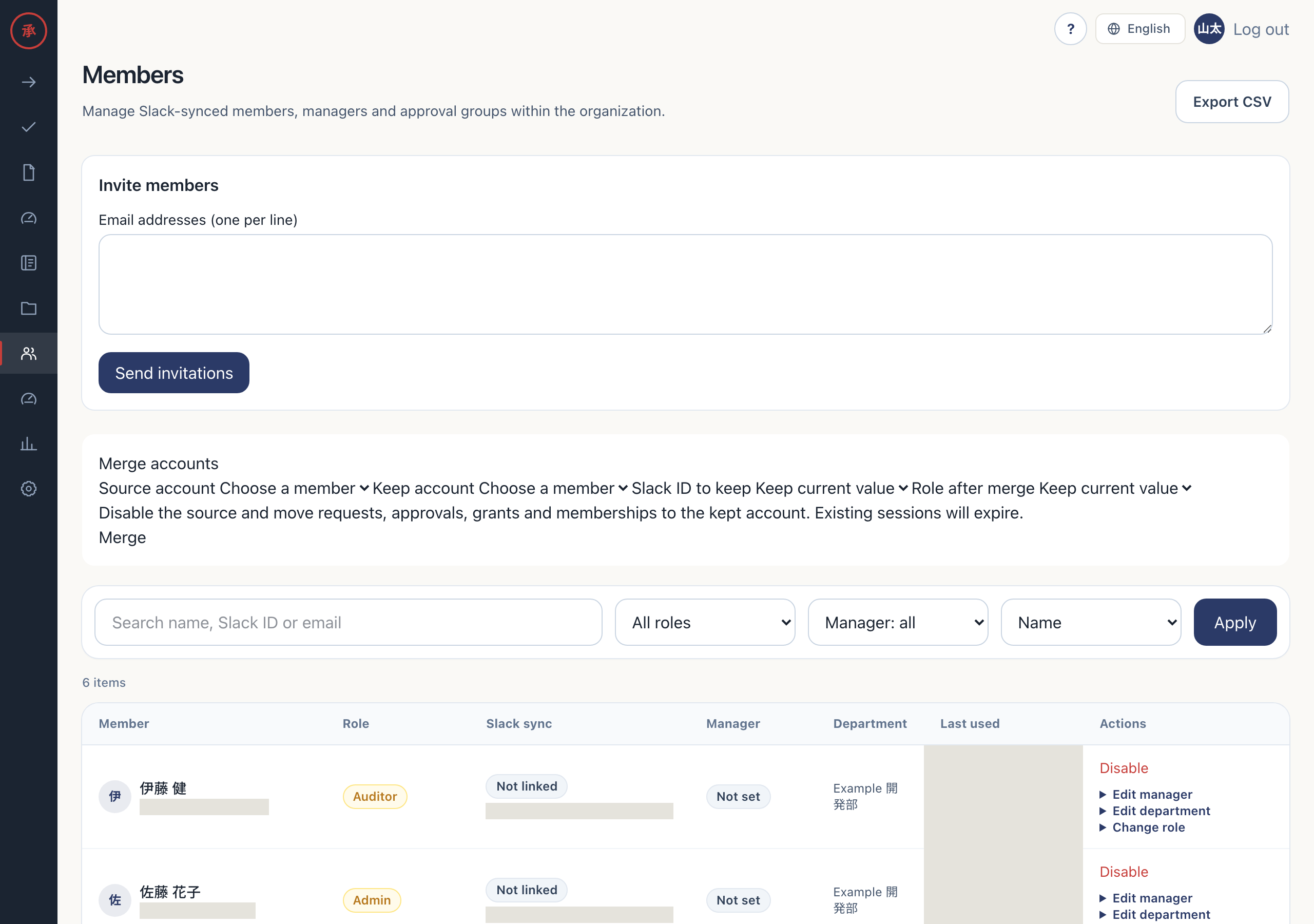
- Open “Members” (
/ws/members). The input appears under “Invite members”. - Enter one address per line in “Email addresses (one per line)”. You can enter multiple recipients in the same textarea.
- Select “Send invitations”. The screen displays “Invitations sent to new members.” New members are registered as Member and receive an invitation email with a login link valid for 15 minutes. In an organization that requires SSO, invitations to anyone other than an Owner contain only a link to
/logininstead of that login link (see Verify domains and require SSO).
Commas are not separators. Each line is trimmed and lowercased. Blank lines are dropped, and duplicate addresses in the input are merged. If the resulting count is zero or exceeds 200, or any line has an invalid format, the entire input is rejected. The screen displays “Enter up to 200 valid email addresses, one per line.” No invitations are sent.
Registered addresses are silently skipped. Inviting them again creates no rows and sends no further invitation email. Even if all addresses are registered, the screen displays “Invitations sent to new members.”
An address outside the configured allowed domains also causes the entire input to be rejected. In this case the browser does not return to the screen; it shows the raw HTTP 400 JSON response ({"error":"email_domain_not_allowed"}).
Members imported through Slack synchronization
Section titled “Members imported through Slack synchronization”Slack synchronization imports only people in user groups. A matching email links to an existing row if its Slack ID is empty. If neither a Slack ID nor an email matches, synchronization creates a new row. See Connect Slack for details.
Assign a manager
Section titled “Assign a manager”- Open “Edit manager” for the member. The candidates are other active members.
- Choose a manager and select “Save”. The screen displays “Manager updated. Existing request approval routes are unchanged.”
Choose “Not set” to clear the manager. On the Web, a person cannot be their own manager. Submitting the same person is rejected with “The manager could not be changed. You cannot select the same user or a member of another organization.”
A “Manager” step resolves to the requester’s direct manager, one person, when the request is created. If the manager is unset or disabled, a request using that route cannot be created. Changing the setting leaves existing request approval routes unchanged. See Build the approval route for route settings.
Slack users can also assign their own manager with /actagate setup @manager. The Slack command does not reject the same person or a disabled member as the Web does.
Choose and change roles
Section titled “Choose and change roles”Choose a role for the person’s responsibilities. See Roles and permissions for the detailed permission table.
| Role | When to use it |
|---|---|
| Owner | Manage the whole organization, including assigning Owner |
| Admin | Manage the organization except for assigning Owner |
| Catalog admin | Create and edit catalog items |
| Member admin | Manage invitations, managers, disabling members, and approval groups |
| Auditor | Review observability, audits, and reports |
| Member | Use the product without management actions |
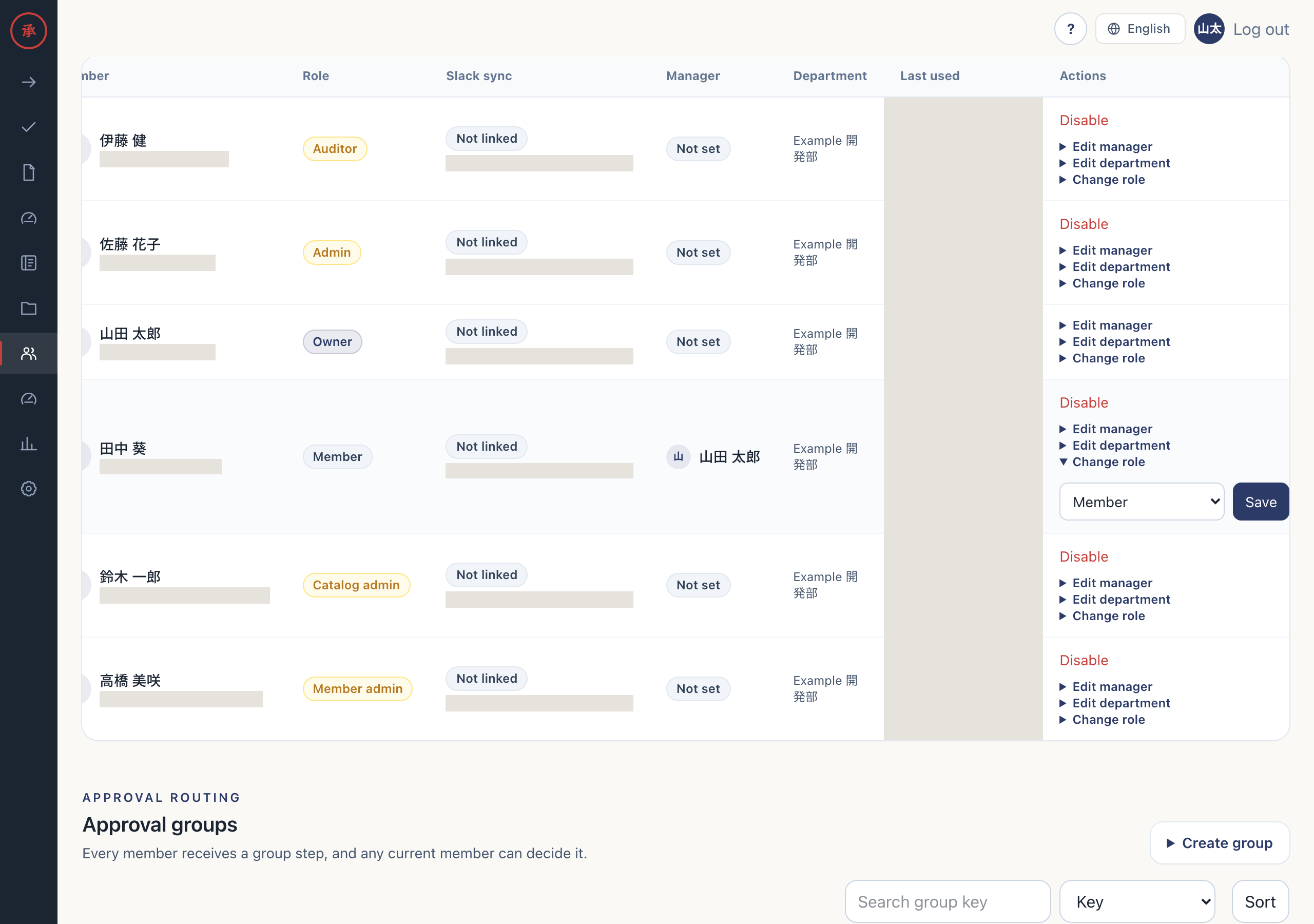
- As Owner or Admin, open “Change role” for the member. Owner sees six options; Admin sees five, excluding Owner.
- Choose a role and select “Save”. If the role changes, the screen displays “Role updated.”
Admin cannot assign Owner. It is absent from the options, and a direct POST attempting to assign it returns 403 without changing the role. The last active Owner cannot be demoted. The screen displays “The last owner cannot be demoted.”
Disable a member
Section titled “Disable a member”- Select “Disable” on the person’s row in “Members”. The member becomes “Disabled”.
You cannot disable yourself or an Owner. Owner rows have no “Disable” button. There is no screen or API for enabling a disabled member again.
After disabling, the person’s sessions stop working and login links are no longer issued. Existing links also stop working, and Slack login is unavailable. Approval behavior changes as follows:
- Pending individual approval steps assigned to the person remain, but nobody can act on them, including delegates.
- Approval group membership rows remain, but the person is excluded from editing candidates. A group with zero active members cannot be used as an approval step in new requests.
- Members who have this person as their manager retain that setting, but cannot create requests using a “Manager” step.
Merge duplicate accounts
Section titled “Merge duplicate accounts”For duplicate rows handled by “Merge accounts” on “Members”, see Manage login methods and merge duplicate accounts.