Set up SSO with generic OIDC
This page is for organization owners and admins who want members to sign in to Actagate with their IdP account. You create an app in an IdP that is not on the list (Keycloak, Okta with a custom domain, and so on), add a Generic OIDC connection on the Actagate settings screen, test it, and then activate it.
Before you start, ask your operator to set SSO_SECRET_ENCRYPTION_KEY and WEB_BASE_URL (see Single sign-on basics).
The IdP must meet these conditions:
- It publishes discovery at
<issuer>/.well-known/openid-configuration - It supports PKCE with S256 (
code_challenge_methods_supportedin discovery includesS256) - Client authentication at the token endpoint is
client_secret_postorclient_secret_basic - Discovery, the token endpoint and JWKS are reachable over HTTPS from the internet
1. Create the app in the IdP
Section titled “1. Create the app in the IdP”- In the IdP, create an OIDC client for a web application (a confidential client)
- Allow the authorization code flow and turn on PKCE with S256
- Enter the temporary value
https://<host>/api/auth/sso/callback/0as the redirect URI. The real URL is known after you save the connection in step 2 - Allow the scopes
openid,profileandemail. Make sure the ID token containssub,emailandemail_verified - Give the admin who will run the test and the members who will sign in access to the app
- Copy the client ID, client secret and issuer
Official documentation: OpenID Connect Discovery 1.0
2. Add the connection in Actagate
Section titled “2. Add the connection in Actagate”- Open Settings > Security (
/ws/settings/security). Under Single sign-on, in “Pick a provider to add a connection”, open “Generic OIDC”. The connection form opens - Enter “Display name”, “Issuer URL”, “Client ID” and “Client secret”, then press “Add connection”. The screen shows “Connection saved.” and a new connection marked “Draft · Not tested” appears under “Connections”
- Copy the “Callback URL to register in the IdP” shown on the connection. It looks like
https://<host>/api/auth/sso/callback/<connection ID> - Register that URL in redirect URIs in the IdP and delete the temporary value. Match the displayed value exactly, including the connection ID
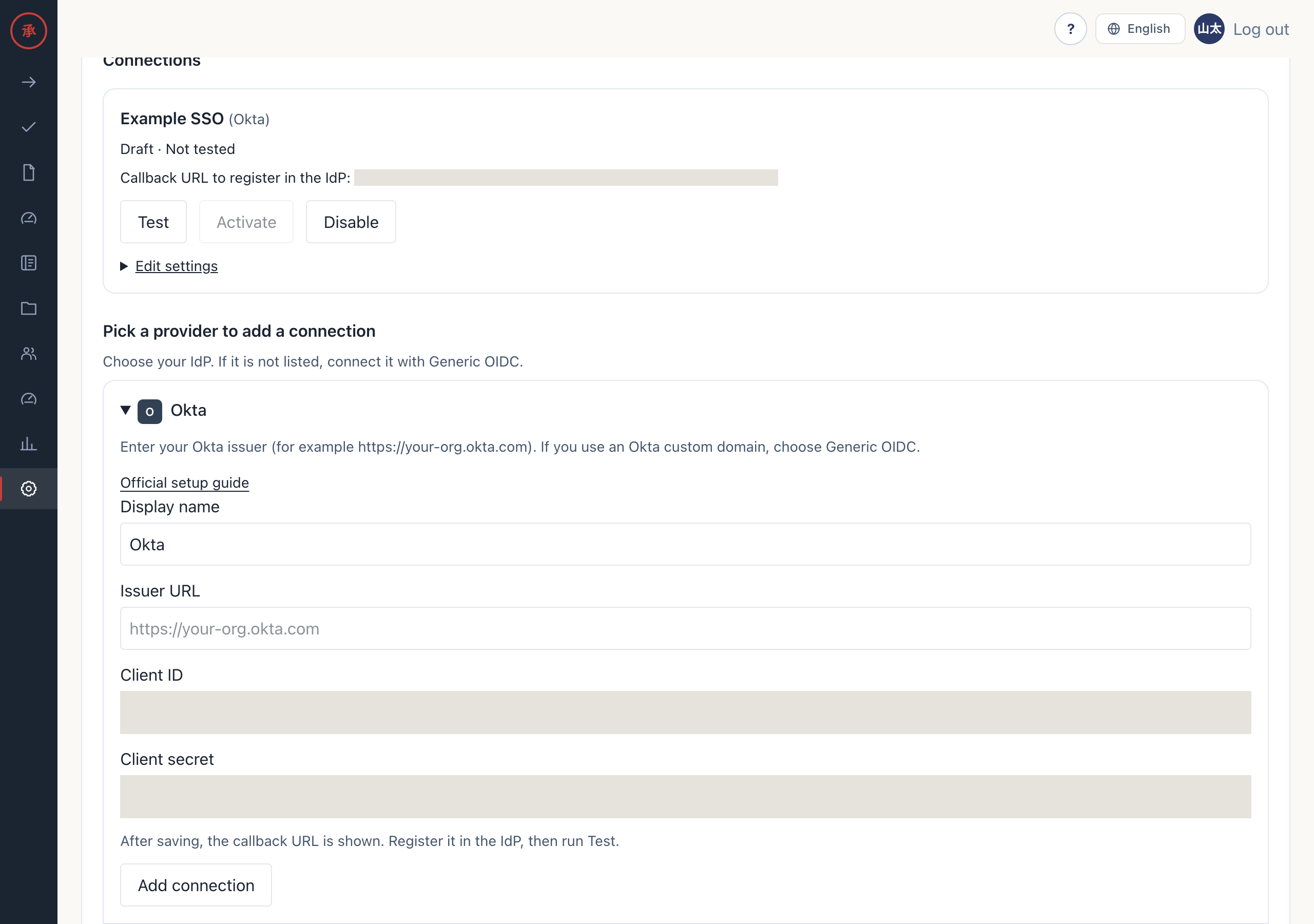
The issuer is an absolute URL that starts with https://. User info (user:pass@), a query and a fragment are not allowed. One trailing / is removed when you save. Nothing else changes, including letter case and the path. The issuer in discovery must match the saved value, and the only difference allowed is that one trailing /. Actagate reads the token URL and the other endpoints from discovery, so there are no fields for them.
After you save, the client secret is never shown again. The screen only says “Secret: set”.
3. Test
Section titled “3. Test”- Press “Test” on the connection. The IdP sign-in page opens
- Sign in with your own IdP account. You return to the settings screen, which shows “Test passed. You can activate the connection.” The connection is now marked “Test passed”
The test runs the full authorization code flow with PKCE and checks the ID token signature, issuer, audience, expiry, nonce and sub. Your admin session stays as it is. The test creates no user and links no login method. If it fails, the screen shows a reason code.
4. Activate
Section titled “4. Activate”- Press “Activate” on the connection. The screen shows “Connection activated. It is now available on the login screen.” and the status changes to “Active”
You can press “Activate” only after a test passes. Changing the Issuer URL, client ID or client secret clears the test result and returns the connection to draft.
5. Check sign-in
Section titled “5. Check sign-in”- An invited member who is not an admin opens the login screen. A button labeled “Continue with
” is shown - The member presses the button and signs in with the IdP. The Actagate screen opens
- Check that a user who is not assigned to the app in the IdP cannot sign in
On the first sign-in, Actagate matches the email address that the IdP marks as verified (email_verified) against the invited member’s email address. Owners and admins sign in with an existing method first, then link the connection with “Add
6. Troubleshooting
Section titled “6. Troubleshooting”discovery_failed: check that<issuer>/.well-known/openid-configurationopens in a browserunsafe_endpoint: discovery or an endpoint is not HTTPS, or points to an address on an internal networkpkce_unsupported: turn on PKCE with S256 in the IdPunsupported_client_auth: set client authentication toclient_secret_postorclient_secret_basicinvalid_identity: configure the IdP to putsubin the ID token
Other reason codes are listed in SSO troubleshooting.