Build the approval route
Catalog administrators decide who approves a request, and in what order, under “Approval route” in the builder. The route is evaluated once from the values entered when the request is created and then stays fixed, so use conditional steps when the approvers depend on an amount or another value.
Approver types
Section titled “Approver types”Each step’s approvers come from three kinds of option. There is no field for typing a raw ID.
| Option | Who approves |
|---|---|
| Requester’s manager | The manager set on the requester’s member record |
| Group: |
Any one member of the approval group |
| Member: |
The one person you name |
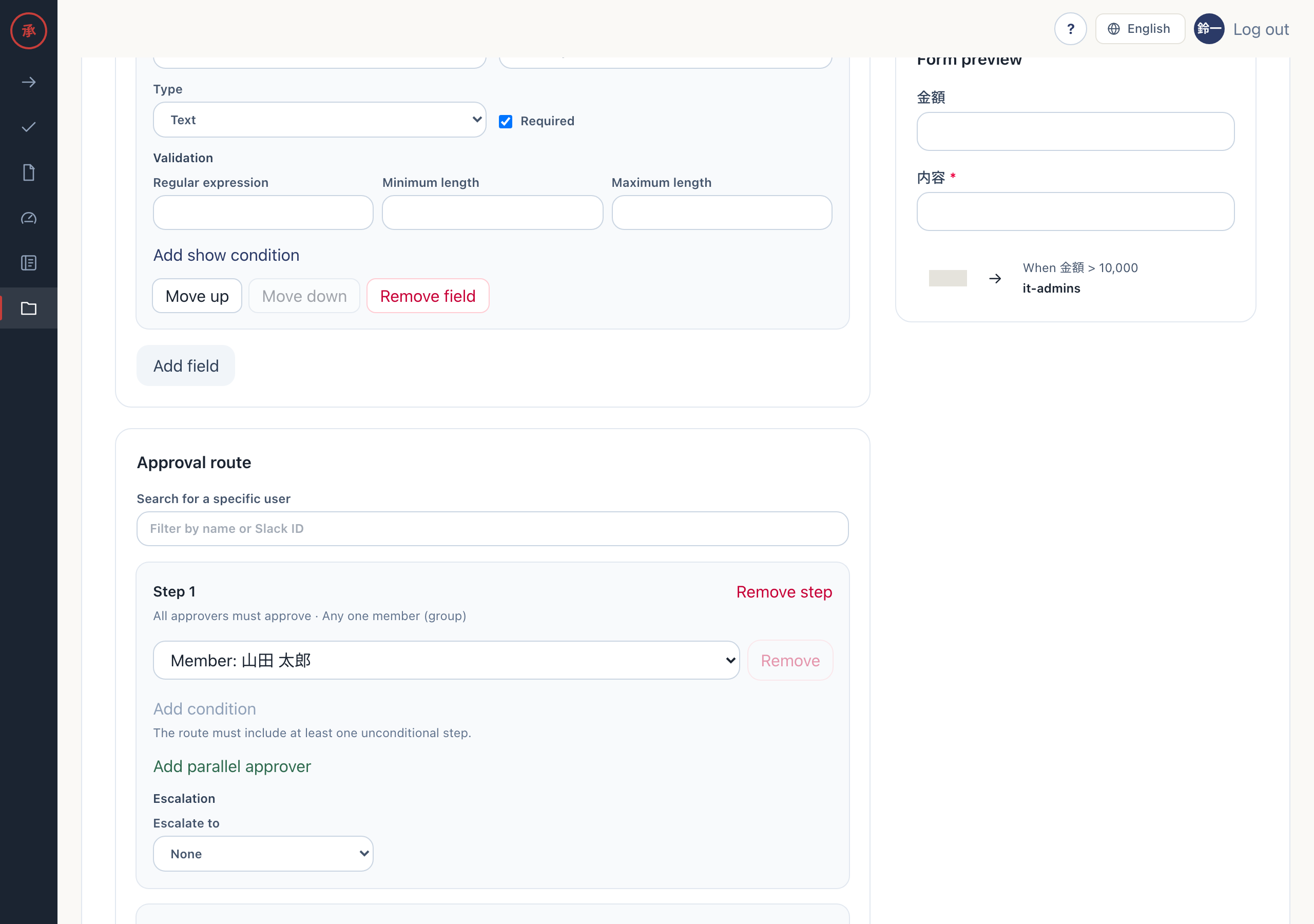
With many members, type a name or Slack ID in “Search for a specific user” to narrow the list. Create groups on the members screen beforehand.
Steps and parallel approvers
Section titled “Steps and parallel approvers”The route runs “Step 1”, then “Step 2”, and so on. Once a step is approved, the next step receives the request.
- Press “Add step” under “Approval route”. A new step appears at the end with “Requester’s manager” as its approver
- Choose the manager, a group or a member from the approver list. The route in the preview on the right updates
- To add another approver to the same step, press “Add parallel approver”. A new approver row appears in the step
Under each step heading the screen shows “All approvers must approve · Any one member (group)”. Every approver in the same step must approve. A group row is the exception: any one member of that group is enough. The same approver cannot appear twice in one step.
Add a condition
Section titled “Add a condition”Each approver row can have a condition. Conditions work on Number and Select fields.
| Field type | Operator | Value |
|---|---|---|
| Number | > >= < <= |
A number |
| Select | == |
One option |
| Select | in |
Several options (Values (select multiple)) |
As an example, add approval by the directors group only when the amount is over 50,000. The “Expense pre-approval” template already has a number field “Amount”, so it is a quick place to start.
- Press “Add step” to create Step 2 and choose “Group: directors” as its approver. Step 2 now has a directors row
- Press “Add condition” on that row. The condition area opens with “Field”, “Operator” and “Value”
- Choose Amount in “Field” and
>in “Operator”, and enter50000in “Value”. Step 2 in the preview shows “When Amount > 50,000” - Press “Save changes”. The screen shows “Saved.”, and the row in the catalog list shows “When Amount > 50,000: directors”
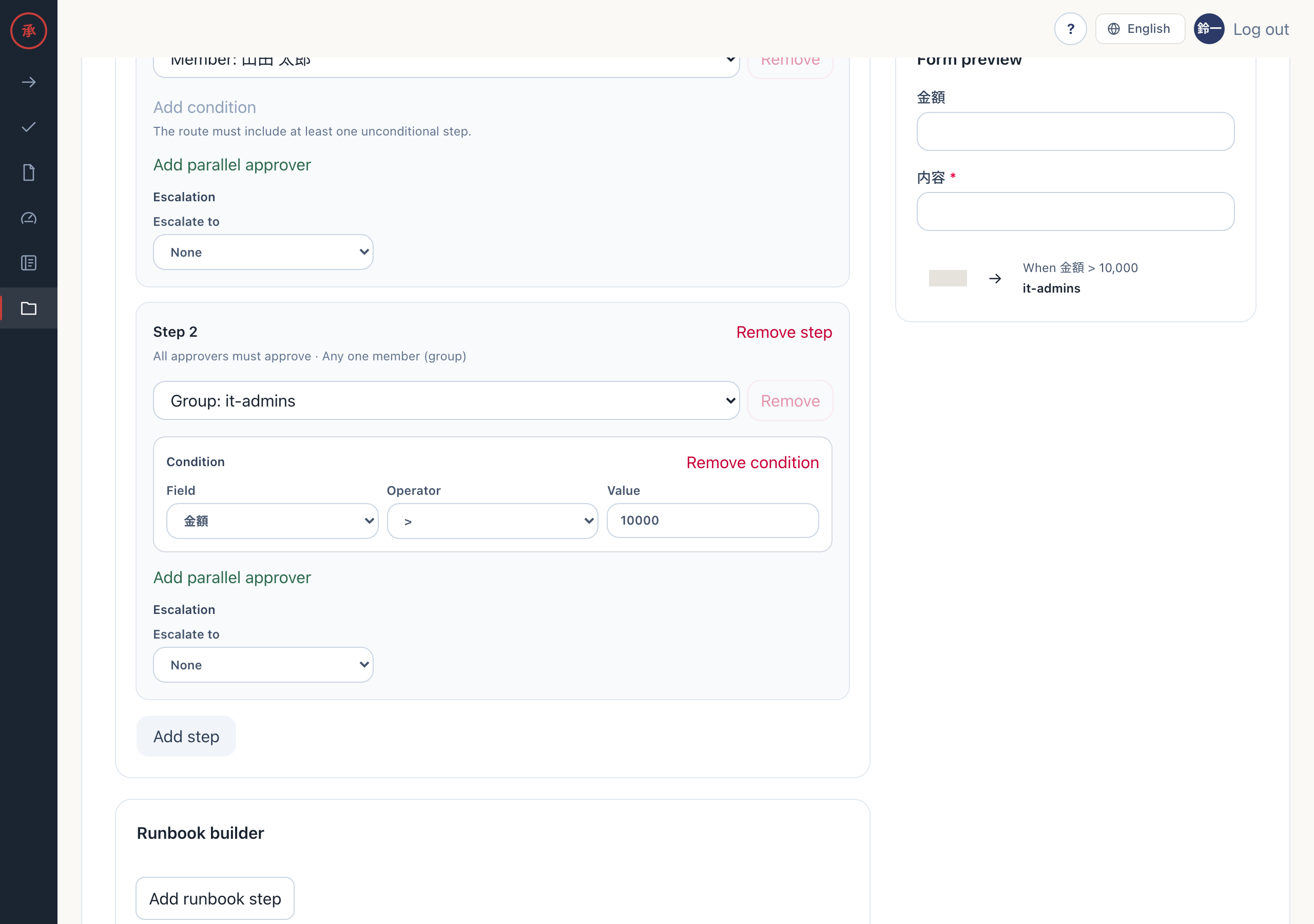
To remove a condition, press “Remove condition”.
Keep at least one unconditional step
Section titled “Keep at least one unconditional step”The route needs at least one approver without a condition. If every approver had a condition, a request that matches none of them would have no approver.
In the builder, when only one unconditional approver is left, “Add condition” is disabled and the screen shows “The route must include at least one unconditional step.” If you write conditions on every step in the JSON tab, or a condition on a field that does not exist, the item cannot be saved.
How the route is evaluated and shown
Section titled “How the route is evaluated and shown”Conditions are evaluated once, from the values entered when the request is created.
- A row whose condition is false is left out of that request’s route. If a step ends up empty, the whole step is removed and the later steps move up
- If an optional field is left empty, its condition counts as false. The request does not fail. It just does not get that step
- The evaluated route is stored with each request. Later changes to the catalog or the organization do not change the route of a request in progress
With the example above, requests for 30,000 and 80,000 show this under “Approval status” on the request detail screen (/requests/<id>).
| Amount | Approval status |
|---|---|
| 30,000 | Step 1 (manager) only |
| 80,000 | Step 1 (manager) → Step 2 (directors) |
If the approvers cannot be resolved, for example because a group is empty or the requester has no manager, the request is not created. The request screen shows “The approval route could not be resolved. Check the approver settings in members and organization management.”