Edit in the JSON tab
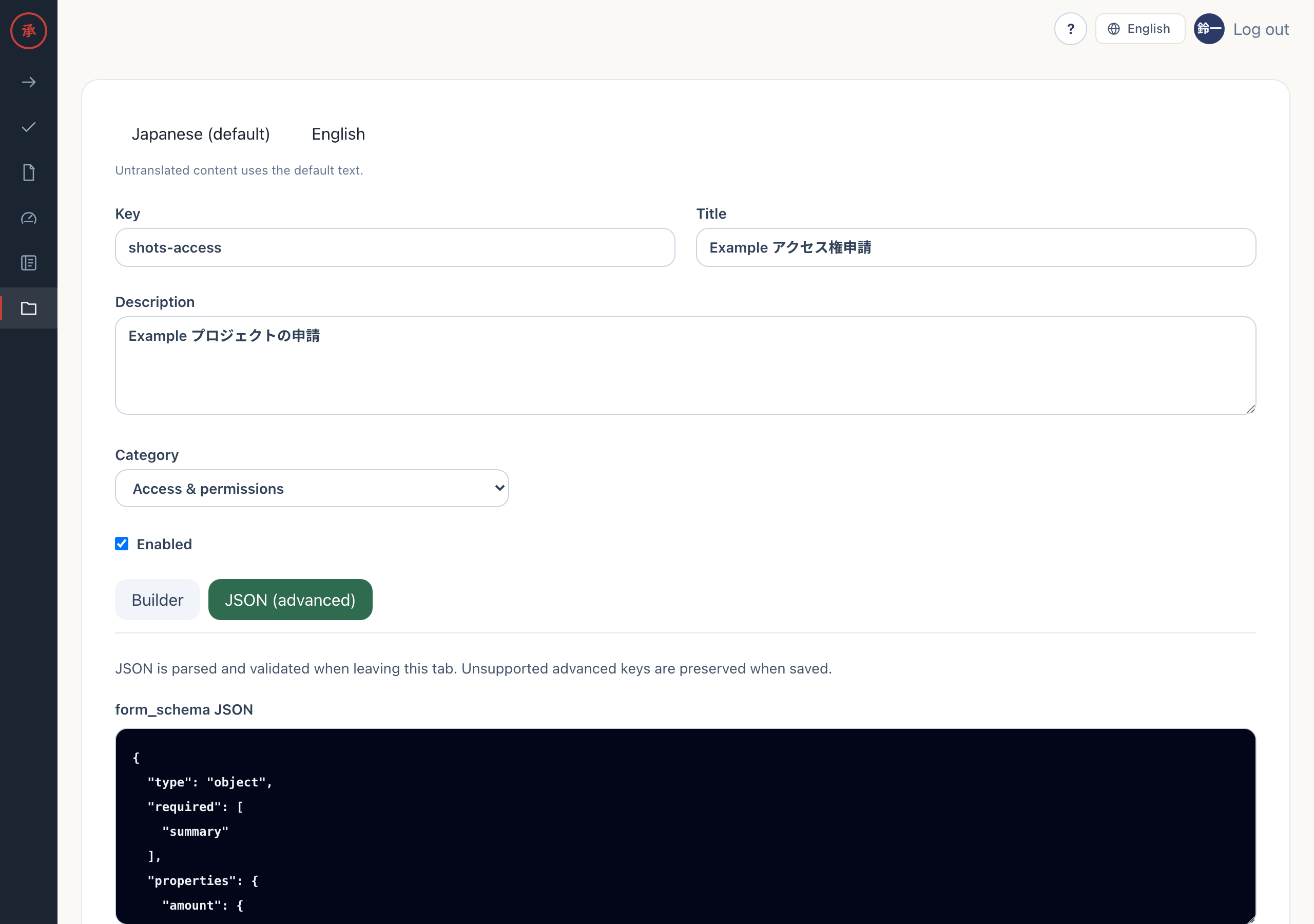
Catalog administrators use the “JSON (advanced)” tab to write definitions the builder cannot show. The JSON is validated before it is saved, but it gives you more freedom than the builder, so you have to fix mistakes in it yourself.
What the JSON tab contains
Section titled “What the JSON tab contains”The JSON tab shows the catalog definition in four boxes. They hold exactly the values that get saved.
| Box | Contents |
|---|---|
| form_schema JSON | Form fields |
| route JSON | Approval route |
| action JSON | Execution |
| cost_model JSON (leave empty if unused) | Monthly cost. Leave it empty if you do not use it |
Edits in the builder update the JSON tab at the same time. What you write in the JSON tab is parsed and validated when you leave the tab and when you save. Keys the builder does not handle (such as fallback or per) are kept when you save.
For the key definitions, see the Catalog JSON specification.
Write a shape the builder cannot show
Section titled “Write a shape the builder cannot show”The builder handles one execution change (changes) only. Write two or more in the JSON tab.
- On the edit screen, press the “JSON (advanced)” tab. The four boxes show the current definition
- Add a second element to
changesin “action JSON”. Each element needsopandresource - Press the “Builder” tab. The tab does not switch, and the screen shows “This item is managed as advanced JSON. Builder editing is disabled to preserve all information.”
- Press “Save changes”. The screen shows “Saved.”
After saving, the catalog item opens in the JSON tab from the start. If you cut changes back to one element and press the “Builder” tab, you can edit it in the builder again.
{ "executor": "manual", "manual_group": "it-admins", "template": { "summary": "Onboarding for {{name}}", "changes": [ { "op": "create_account", "resource": "account:{{email}}", "summary": "Create the account" }, { "op": "ship_laptop", "resource": "laptop:{{email}}", "summary": "Ship the laptop" } ], "manual_instructions": "Create the account and ship the laptop" }}This example needs two fields, name and email, in form_schema. Without them the item cannot be saved.
Invalid JSON
Section titled “Invalid JSON”JSON that cannot be parsed, such as a missing bracket or a trailing comma, is not saved. You also cannot leave the tab.
- In the JSON tab, break the syntax of any box
- Press the “Builder” tab. The screen shows “The JSON could not be validated. Fix it before returning to the builder.” and stays on the JSON tab
- Pressing the save button in this state shows the same message, and nothing is sent
- Fix the JSON and press the “Builder” tab. The message disappears and the builder opens
Validation covers more than syntax. A route condition on a field that does not exist, a route where every step has a condition, and a placeholder that references a missing key all stop with the same message.
Duplicate keys
Section titled “Duplicate keys”A catalog key is unique within the organization. If you give a new catalog item the key of an existing one and press “Create catalog item”, the screen shows “The action could not be completed.” and nothing is created. A key filled in from the title counts the same way. The key of a saved catalog item cannot be changed on the edit screen.
Writing the same key twice in one JSON object does not raise an error. Only the later value is kept. The earlier one is dropped when you save. Do not repeat keys.
AI draft
Section titled “AI draft”When an LLM connection is configured, “Ask AI to create a draft” appears at the bottom of the “Builder” tab. Enter a description and press “Create AI draft”. The AI’s definition fills the builder, and the screen shows “Review the draft, then save”.
The draft lives only on the screen. It is not written to the database. It is saved only when you review it and press “Create catalog item” on the create screen or “Save changes” on the edit screen. If you leave the screen without pressing either, the draft is gone. When AI is unavailable, the screen shows “AI drafting is currently unavailable” and nothing is saved. A draft that names an approval group that does not exist, or a specific member as approver, is rejected with the same message. AI is optional. Manual work in the builder and the JSON tab works the same without an AI connection.