Catalog basics and your first item
Catalog administrators start here to build request types and publish them to the organization. Everything people can request in Actagate comes from the catalog, so create one item from a template and take it from request to completion once.
What a catalog item defines
Section titled “What a catalog item defines”One catalog item is one request type. A request type has three parts, plus cost information.
| Part | What it decides | Details |
|---|---|---|
| Form | The fields the requester fills in | Build form fields |
| Approval route | Who approves, and in what order | Build the approval route |
| Execution | What happens after approval (automatic or runbook) | Define the execution |
| Cost and expiry | Monthly cost and expiry date | Set cost and expiry |
Members with the owner, admin or catalog admin role can create and edit catalog items. The screen is “Catalog” in the workspace (/ws/catalog).
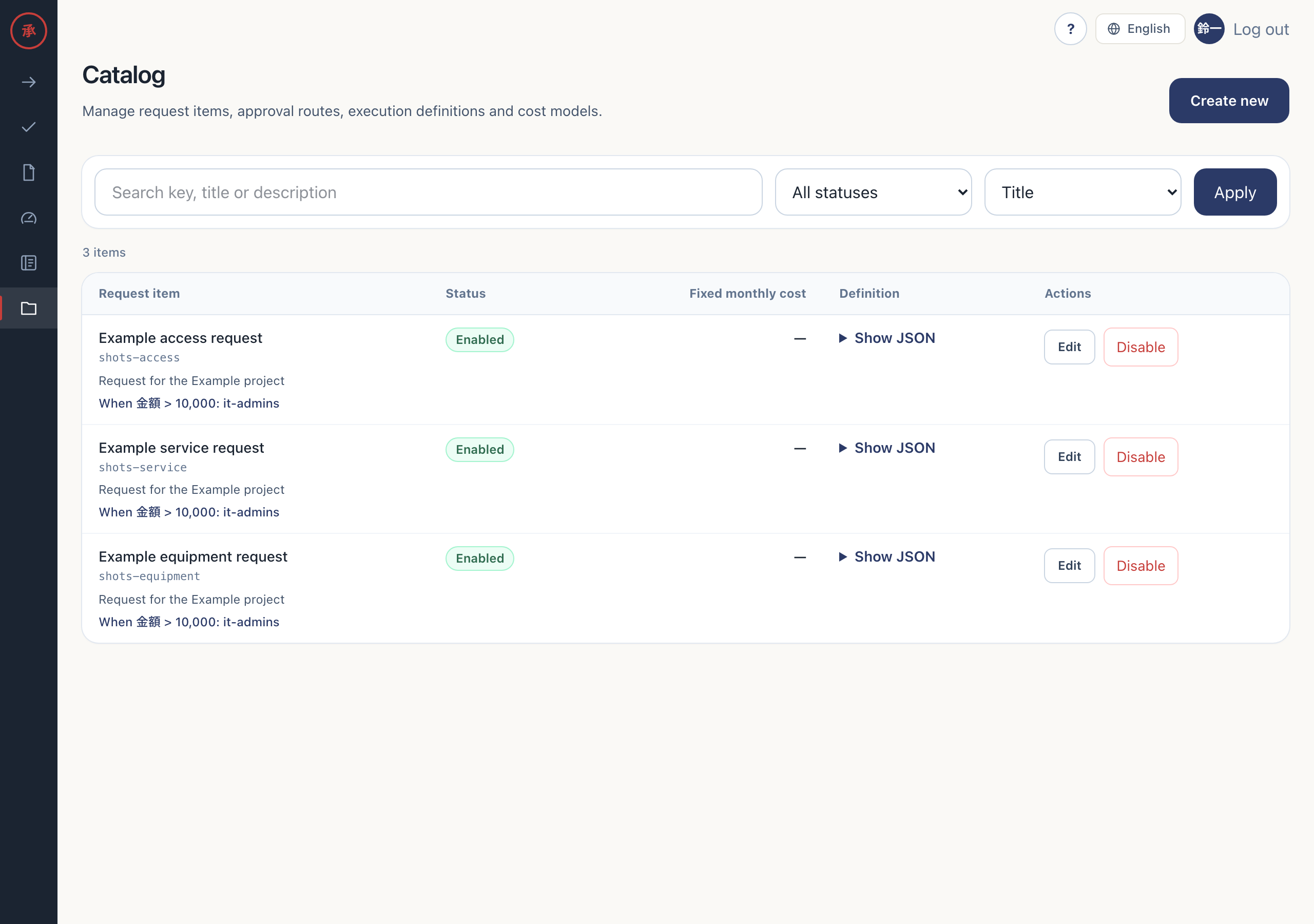
Each row shows the title, key and description, plus any approval condition. “Status” is “Enabled” or “Disabled”. Open “Show JSON” to see the stored definition as is.
Create your first item from a template
Section titled “Create your first item from a template”Save the “Travel request” template without changes, then take it through request, approval and runbook completion. Check three things before you start.
- The requester has a manager. Without one, the route cannot be resolved and the request cannot be created
- An approval group
it-adminsexists with at least one member linked to Slack. “Travel request” has its execution group set to “No group”, so the runbook task goes toit-admins - Slack is connected. Runbook tasks are reported complete in Slack
- Open “Catalog” in the workspace and press “Create new”. The create screen (
/ws/catalog/new) opens with the “Builder” tab selected - Under “Start from a template” at the bottom of the “Builder” tab, press “Travel request”. Key becomes
travel-request, Title becomes “Travel request” and Category becomes “Other”. “Form fields” lists three required fields: Destination, Start date and End date. Step 1 of the “Approval route” is “Requester’s manager”, and the “Execution method” under “Execution” is “Runbook” - Press “Create catalog item” at the bottom. The edit screen opens and shows “Saved.” Back in the list, “Travel request” appears as “Enabled”
- In Slack, run
/actagatewith no arguments. A catalog picker opens, and “Travel request” is one of the options. It also appears under “Select request catalogs” on “New request” (/requests/new) in the web app - The requester picks “Travel request” on
/requests/new, presses “Continue”, fills in the three fields and presses “Submit this request”. The request detail screen (/requests/<id>) opens. “Approval status” shows that the manager has not approved yet, and “What happens next” shows “Handled via runbook” - The manager presses “✅ Approve” on the Slack approval card, or “Approve” in the approval queue (
/ws/approvals). Members ofit-adminsreceive “🔧 Execution task #”, and its instructions show the destination the requester entered - A member of
it-adminspresses “Report completion”, enters “Evidence text” in “Report execution completion” and presses “Record completion”. The task message changes to “✅completed this task.”, and the request is done
There are ten templates. Each one only fills in a draft, so you can change fields and the route before you save. Choosing a template while editing replaces everything in the builder except the key.
Enable and disable an item
Section titled “Enable and disable an item”Only enabled items appear as request options. A change takes effect when you save it. The next person who opens /actagate or /requests/new sees the new list.
- In the catalog list, press “Disable” on the row. The screen shows “Catalog item disabled.” and the status becomes “Disabled”
- Open
/actagatein Slack and/requests/newagain. The disabled item is no longer an option - To enable it again, open “Edit” on the row, tick “Enabled” and press “Save changes”. The screen shows “Saved.” and the item is an option again
Disabling an item does not delete requests created from it. Approval and execution of requests in progress also continue.